> ## Documentation Index
> Fetch the complete documentation index at: https://tyk.io/docs/llms.txt
> Use this file to discover all available pages before exploring further.
# Manage Agents in Tyk AI Studio
> How to create and manage Agents in Tyk AI Studio, which connect an Agent plugin to an App to make a conversational AI experience available to users.
## Availability
| Edition | Deployment Type |
| :---------------------------------------------------------------------------------------------------------------------------------------------------- | :------------------- |
| [Community](/docs/nightly/ai-management/ai-studio/overview#community-edition) & [Enterprise](/docs/nightly/ai-management/ai-studio/overview#enterprise-edition) | Self-Managed, Hybrid |
> **Experimental Feature**: Agents depend on Agent plugins, which are currently experimental. The API and behavior may change in future releases.
An **Agent** is an administrator-managed object in Tyk AI Studio. It connects an [Agent plugin](/docs/nightly/ai-management/ai-studio/plugins/studio-agent) to an [App](/docs/nightly/ai-management/ai-studio/admin-apps), and controls which Teams can use it. Once you activate an Agent, it appears as a conversational AI option for its users in the AI Portal.
This page covers the **Agent** object, managed in the **Agents** section of the AI Studio dashboard. For the plugin code that powers an Agent's conversation logic, see [AI Studio Agent Plugins](/docs/nightly/ai-management/ai-studio/plugins/studio-agent).
## Agent vs Agent Plugin
These two terms sound alike, but they refer to different things.
| Term | What It Is | Where You Manage It |
| ---------------- | ---------------------------------------------------------------------------------------------------------------------------------------------------------------------------------------- | ----------------------------------------------------------------------------------------------------------------------------------------------------------------- |
| **Agent plugin** | The gRPC plugin code that implements the conversation logic. A developer builds and deploys it. | The **Plugins** section of the AI Studio dashboard, with hook type `agent`. See [AI Studio Agent Plugins](/docs/nightly/ai-management/ai-studio/plugins/studio-agent). |
| **Agent** | A configuration object that binds an Agent plugin to an App, sets access control, and stores plugin-specific settings. An administrator creates it directly in the UI, no code required. | The **Agents** section of the AI Studio dashboard, covered on this page. |
An Agent plugin is reusable. You can create several Agents from the same plugin, each linked to a different App, configuration, and set of Teams.
## Prerequisites
Before you create an Agent, confirm that you have:
* An active Agent plugin (hook type `agent`) in the **Plugins** section of the AI Studio dashboard. See [AI Studio Agent Plugins](/docs/nightly/ai-management/ai-studio/plugins/studio-agent) to build or install one.
* An active [App](/docs/nightly/ai-management/ai-studio/admin-apps) with an active credential and at least one LLM assigned. The App supplies the LLMs, [Tools](/docs/nightly/ai-management/ai-studio/tools), and [Data Sources](/docs/nightly/ai-management/ai-studio/datasources-rag) that the Agent can use.
## Configuration
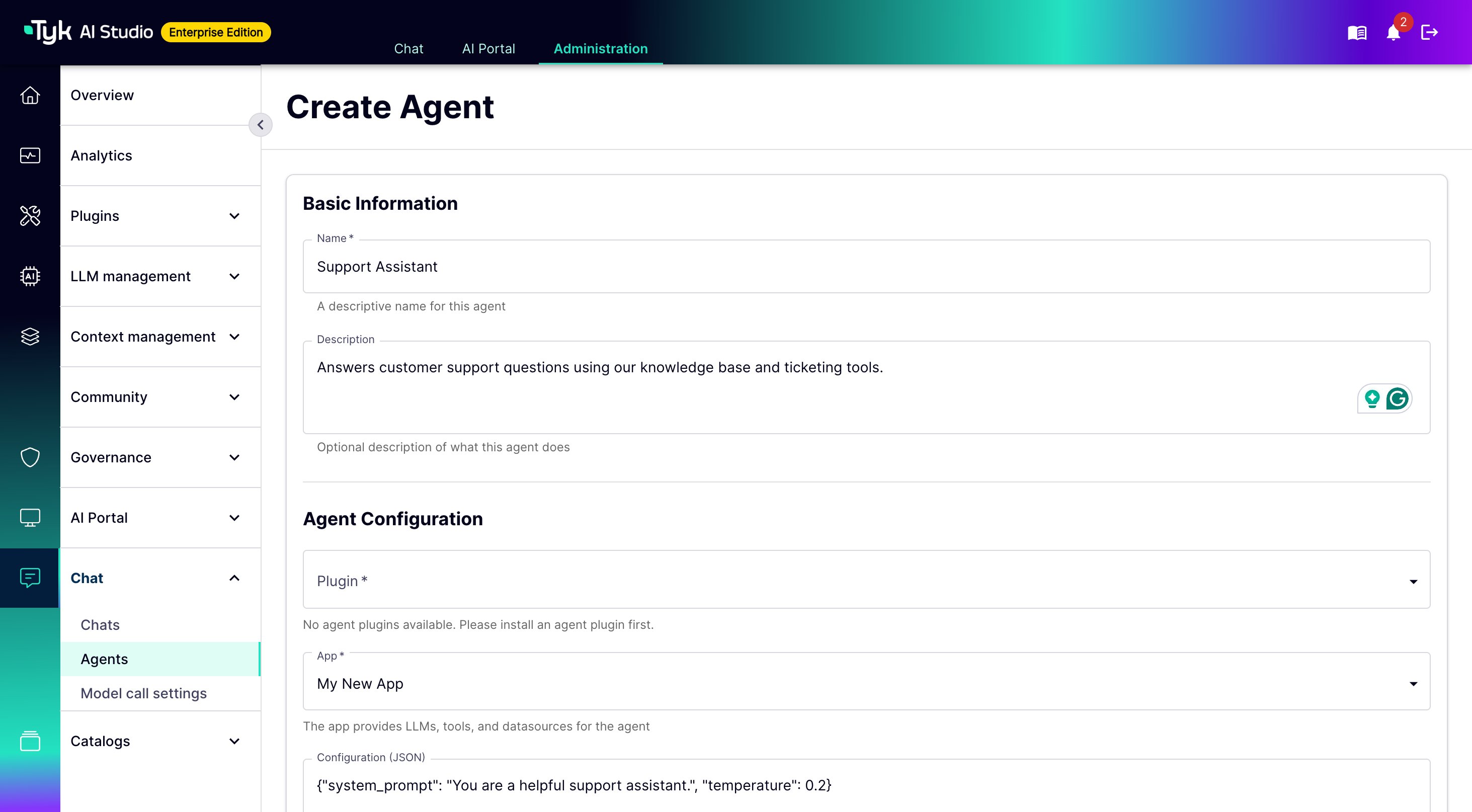
The **Create Agent** form has these fields:
* **Name**: A descriptive name for the Agent. Required.
* **Description**: An optional description of what the Agent does. Users see this description in the AI Portal.
* **Plugin**: The Agent plugin that powers this Agent's conversations. The list shows only active plugins with the `agent` hook type. Required.
* **App**: The [App](/docs/nightly/ai-management/ai-studio/admin-apps) that supplies LLMs, Tools, and Data Sources to this Agent. Required.
* **Configuration (JSON)**: Plugin-specific settings, such as a system prompt or a temperature value. AI Studio checks that this value is valid JSON before you save. It does not validate the content against the plugin's configuration schema.
* **Teams**: The [Teams](/docs/nightly/ai-management/ai-studio/teams) that can use this Agent. Leave this field empty to make the Agent available to all users. Some Agent screens label this same access control **Groups**.
* **Active**: Whether the Agent is available to users. This is on by default.
## How to Create an Agent
1. Navigate to the **Agents** section in the AI Studio dashboard.
2. Click **Create Agent**.
3. Enter a **Name** and, optionally, a **Description**.
4. Select the **Plugin** that will power the Agent's conversations.
5. Select the **App** that provides the Agent's LLMs, Tools, and Data Sources.
6. Enter any plugin-specific settings in the **Configuration (JSON)** field.
7. Optionally, restrict access by selecting one or more **Teams**. Leave this field empty for public access.
8. Click **Create** to save the Agent.
 You can also create an Agent immediately after adding a new Agent plugin. The **Add Plugin** wizard detects the `agent` hook type. It then offers an optional **Agent Setup** step that opens the same form, with the new plugin already selected.
## What Happens When You Save
Only Studio Administrators can create, update, activate, deactivate, or delete Agents.
When you save an Agent, AI Studio checks that:
* The selected Plugin exists, is active, and supports the `agent` hook type.
* The selected App exists, is active, has an active credential, and has at least one LLM assigned.
If these checks pass, AI Studio creates the Agent and generates a URL-friendly slug from its name. If the Agent is active, it appears in the **Agents** section of the AI Portal, alongside Chat Rooms. Members of any Team you selected can see and use it. If you left Teams empty, every user can see and use it.
LLM calls that the Agent makes still go through the [AI Gateway](/docs/nightly/ai-management/ai-studio/proxy) and count against the App's [budgets](/docs/nightly/ai-management/ai-studio/budgeting).
## Managing Existing Agents
From the **Agents** list, you can filter by status. For each Agent, you can view its details, edit it, activate or deactivate it, or delete it.
### Agent Details
The Agent details page shows:
* **Overview**: The Agent's description, slug, and creation date.
* **Configuration**: Links to the underlying Plugin and App, and the current **Configuration (JSON)** value.
* **Available Resources**: The LLMs, Tools, and Data Sources that the Agent inherits from its App.
* **Access Control**: The Teams that can use the Agent, or **Public** if none are set.
* **Test Interface**: A built-in chat panel. Use it to send test messages to an active Agent from within the admin UI, and see its streamed response.
You can also create an Agent immediately after adding a new Agent plugin. The **Add Plugin** wizard detects the `agent` hook type. It then offers an optional **Agent Setup** step that opens the same form, with the new plugin already selected.
## What Happens When You Save
Only Studio Administrators can create, update, activate, deactivate, or delete Agents.
When you save an Agent, AI Studio checks that:
* The selected Plugin exists, is active, and supports the `agent` hook type.
* The selected App exists, is active, has an active credential, and has at least one LLM assigned.
If these checks pass, AI Studio creates the Agent and generates a URL-friendly slug from its name. If the Agent is active, it appears in the **Agents** section of the AI Portal, alongside Chat Rooms. Members of any Team you selected can see and use it. If you left Teams empty, every user can see and use it.
LLM calls that the Agent makes still go through the [AI Gateway](/docs/nightly/ai-management/ai-studio/proxy) and count against the App's [budgets](/docs/nightly/ai-management/ai-studio/budgeting).
## Managing Existing Agents
From the **Agents** list, you can filter by status. For each Agent, you can view its details, edit it, activate or deactivate it, or delete it.
### Agent Details
The Agent details page shows:
* **Overview**: The Agent's description, slug, and creation date.
* **Configuration**: Links to the underlying Plugin and App, and the current **Configuration (JSON)** value.
* **Available Resources**: The LLMs, Tools, and Data Sources that the Agent inherits from its App.
* **Access Control**: The Teams that can use the Agent, or **Public** if none are set.
* **Test Interface**: A built-in chat panel. Use it to send test messages to an active Agent from within the admin UI, and see its streamed response.