

API Templates are exclusive to Tyk OAS APIs. You can manage them with the Tyk Dashboard API or in Tyk Dashboard.
When to Use API Templates
Gateway Agnostic API Design
When you work with upstream services that have OpenAPI descriptions, your service developers don’t need to learn about Tyk. You can create and maintain a set of Templates that contain the Tyk-specific configuration (x-tyk-api-gateway) that your published APIs need. To create an API on Tyk, you import the OpenAPI document and select the correct Template. Tyk combines the OpenAPI description with the Template to produce a valid Tyk OAS API.
Standardizing API Configuration
Your external facing APIs can have specific requirements, for example authentication, caching or a health check endpoint. You can define API Templates that configure these fields correctly when you create APIs on Tyk.How API Templates Work
An API Template is a blueprint from which you build new APIs. It is an incomplete JSON representation of a Tyk OAS API definition. You use it as the starting point when you create a new API on Tyk. A Template can pre-configure as much or as little of the API definition as you need. The blank API definition that you start from when you don’t choose a Template is itself a Template. Tyk Dashboard applies Templates only when you create an API. You can’t apply a Template to an existing API. Before you can use a Template as the basis for an API, you must register the Template with Tyk Dashboard.Structure of an API Template
An API template asset has the following structure:Applying a Template
When you use a Template to create an API, the fields configured indata are pre-set in your new API. You can change them while you create the API and afterwards. Tyk doesn’t create a link between the API and the Template. Changes that you make to the API don’t affect the Template, and changes to the Template don’t affect the API.
Categories are not part of API Templates. You can’t pre-configure them in a Template. Set the Categories when you create the API, or edit them afterwards.
Merging with an OpenAPI Description or Tyk OAS API Definition
When you use a Template to create an API by importing an OpenAPI document or a full Tyk OAS API definition, Tyk combines the Template with the imported document. If the Template contains thex-tyk-api-gateway extension, Tyk applies it to the new API.
Where the OpenAPI description and the Template configure the same field:
- For maps, such as
pathsandcomponents, Tyk adds new keys alongside the keys from the Template. If a key in the OpenAPI description matches one in the Template, the OpenAPI description takes precedence. - For arrays, such as
serversandtags, the values in the OpenAPI description replace the values in the Template.
Fragments in API Templates
From TYk 5.16.0, a Template can contain Fragment references in place of static configuration. When you create an API from the Template, Tyk Dashboard copies the references into the new API. The new API therefore stays linked to the Fragments, and receives any later changes to them. This lets you combine the two. The Template sets up a new API. The Fragments in it keep shared configuration, such as security settings, the same across every API that you create from the Template. Tyk Dashboard validates a Template with its Fragments resolved when you save the Template, and when you change a Fragment that the Template references. You can’t delete a Fragment while a Template references it. When you create a Template from an existing API, the Template keeps the Fragment references of the API.Use API Templates in Tyk Dashboard
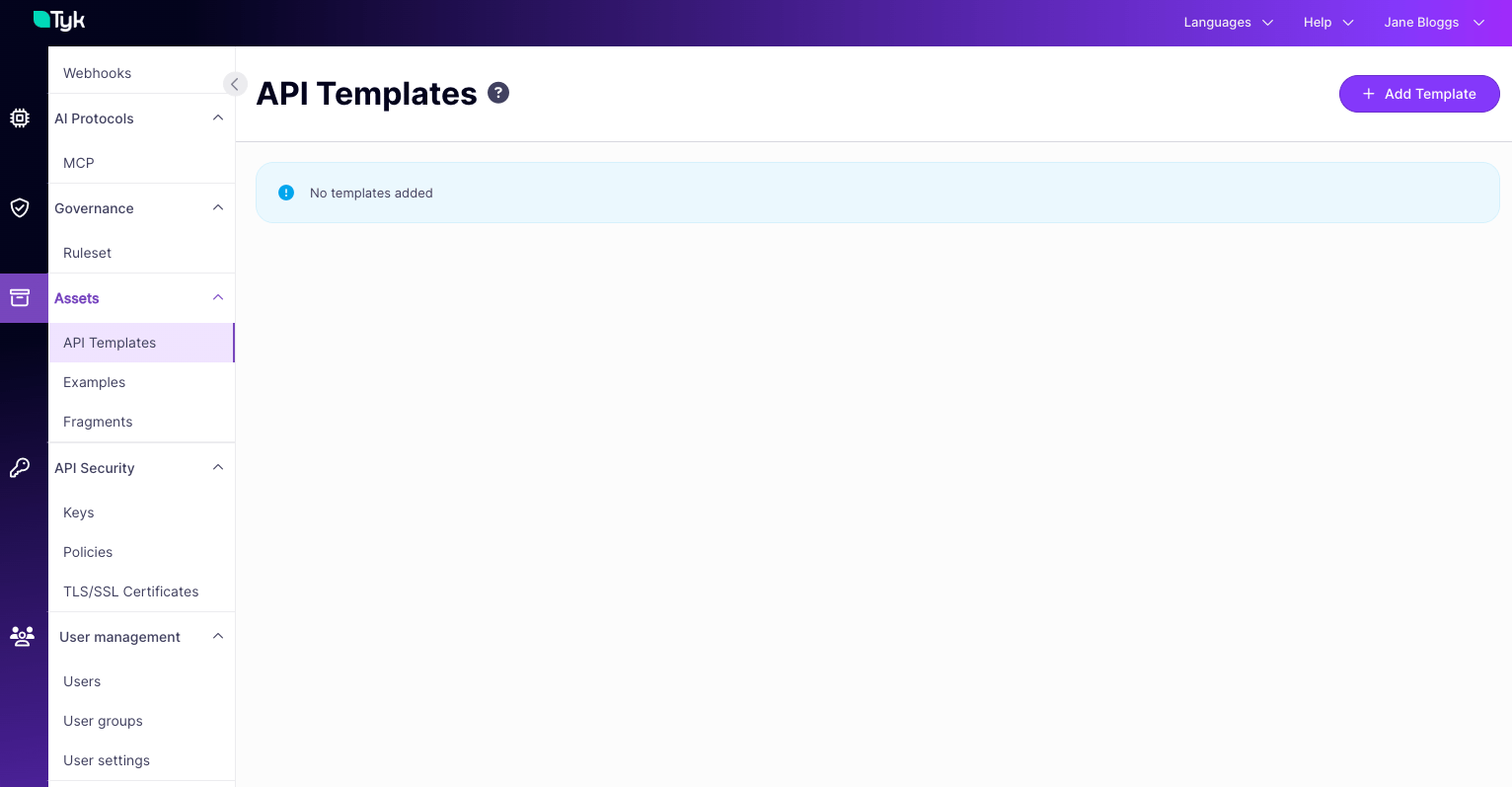
API Templates are in the Assets section of the Tyk Dashboard menu, under API Templates. To see them, you need theapi_assets permission. This screen lists all the Templates registered with Tyk, with their names, Template IDs and descriptions. You can create and manage Templates from this screen.
Create a Template
- Go to Assets > API Templates and click Add Template.
- On the Create API Template screen, in Template info, enter a Template Name and a Template Description. Both are required. The Template doesn’t need to be a complete or valid API definition.
-
Configure the API-level settings on the Settings tab, and the endpoint-level settings on the Endpoints tab.
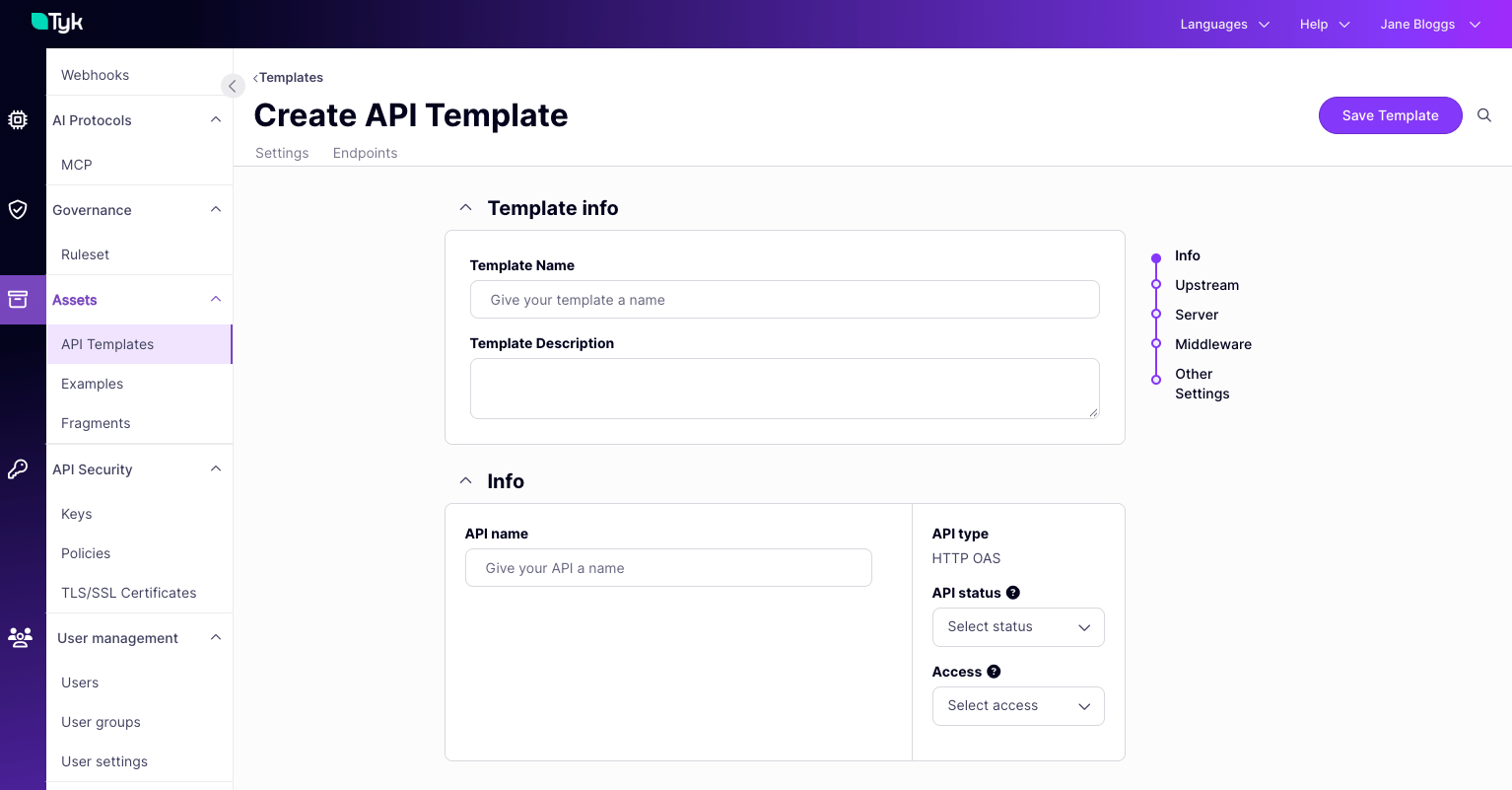
- Click Save Template.
Create a Template from an API
You can use an existing API deployed on Tyk as the basis for a new API Template. This is a good way to build up a portfolio of standardized APIs once you’ve configured your first API correctly.- Open the API that you want to use as your starting point.
-
Click Actions and select Create API template.
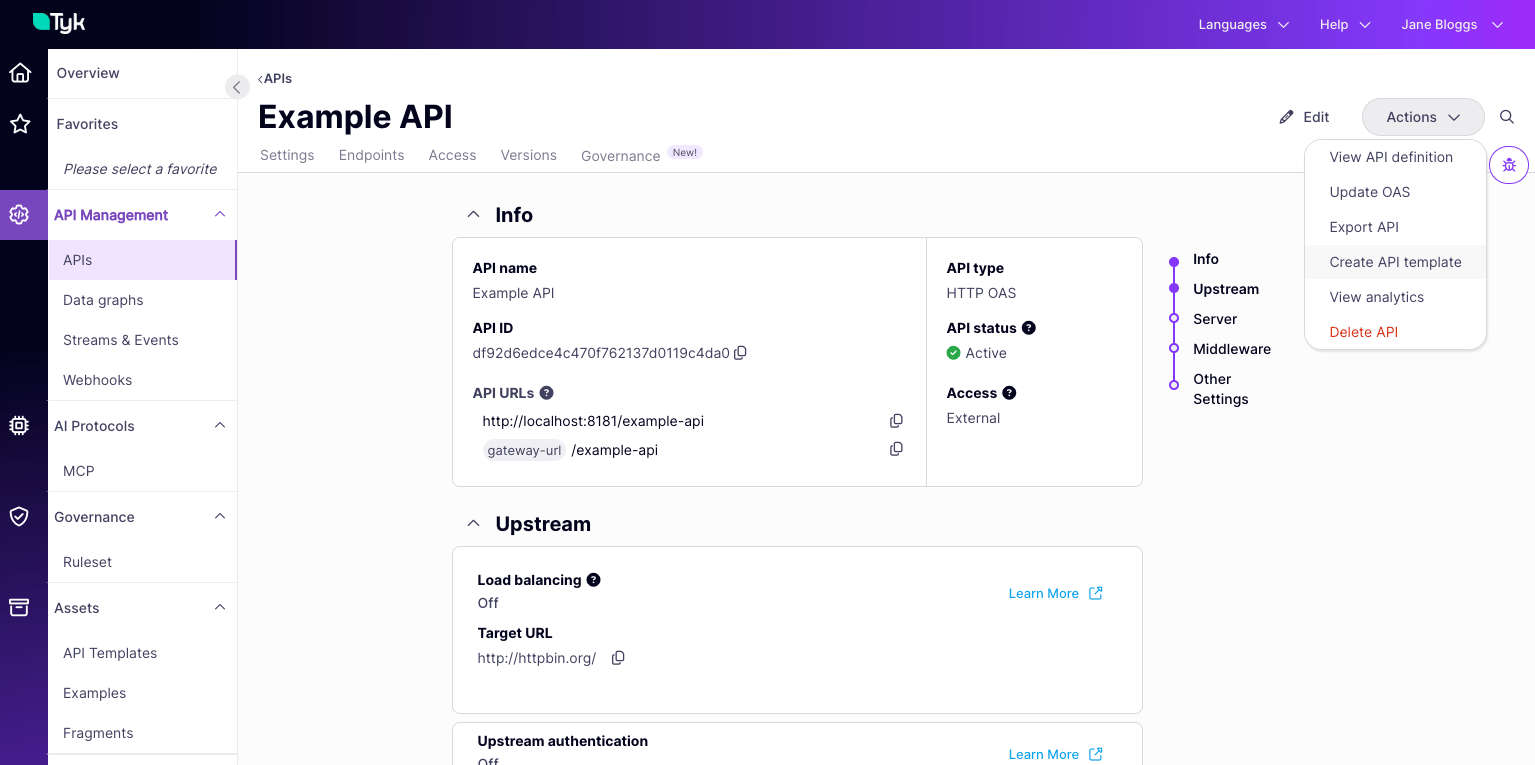
- On the Create API Template screen, enter a Template Name and a Template Description.
- Change any of the API-level and endpoint-level settings that you need.
- Click Save Template.
Create an API from a Template
You can base a new API on a Template in two ways:-
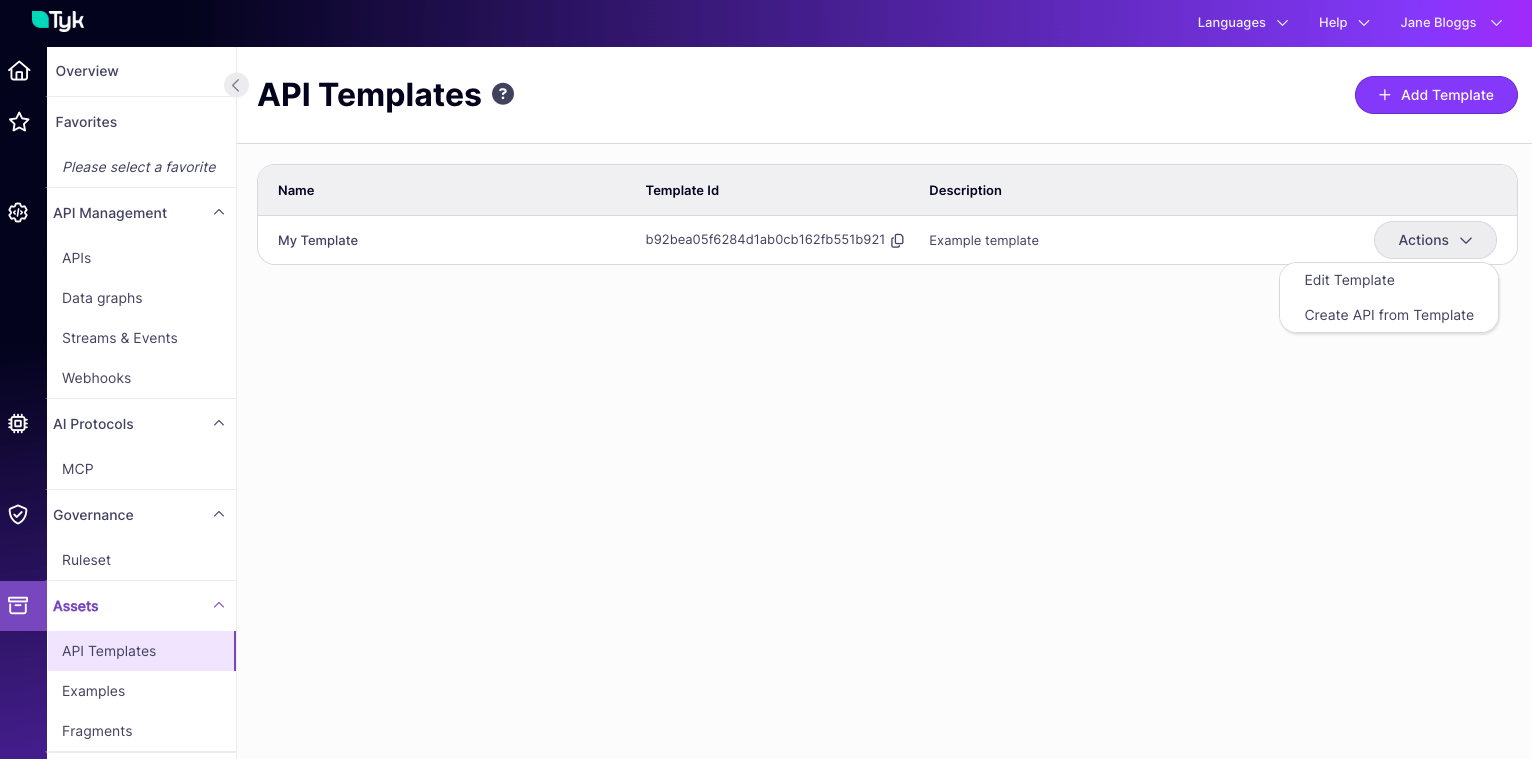
Go to Assets > API Templates. For the Template that you want to use, open the Actions menu and select Create API from Template.
-
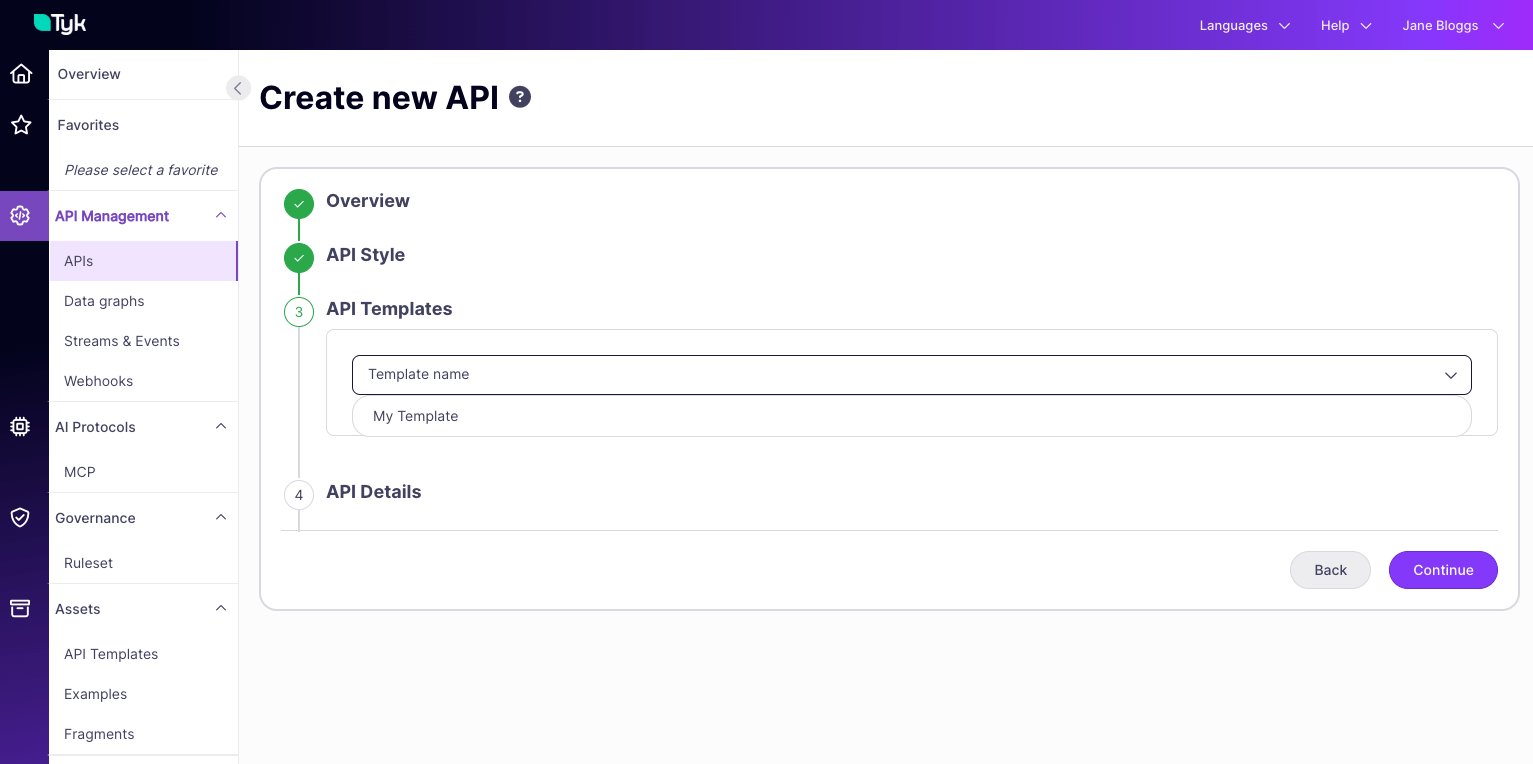
Go to the APIs list and click Add New API. In the API Style step, select an HTTP API with Tyk OAS, then select the Template in the API Templates step. Tyk Dashboard shows this step only when at least one Template exists.
Import an API with a Template
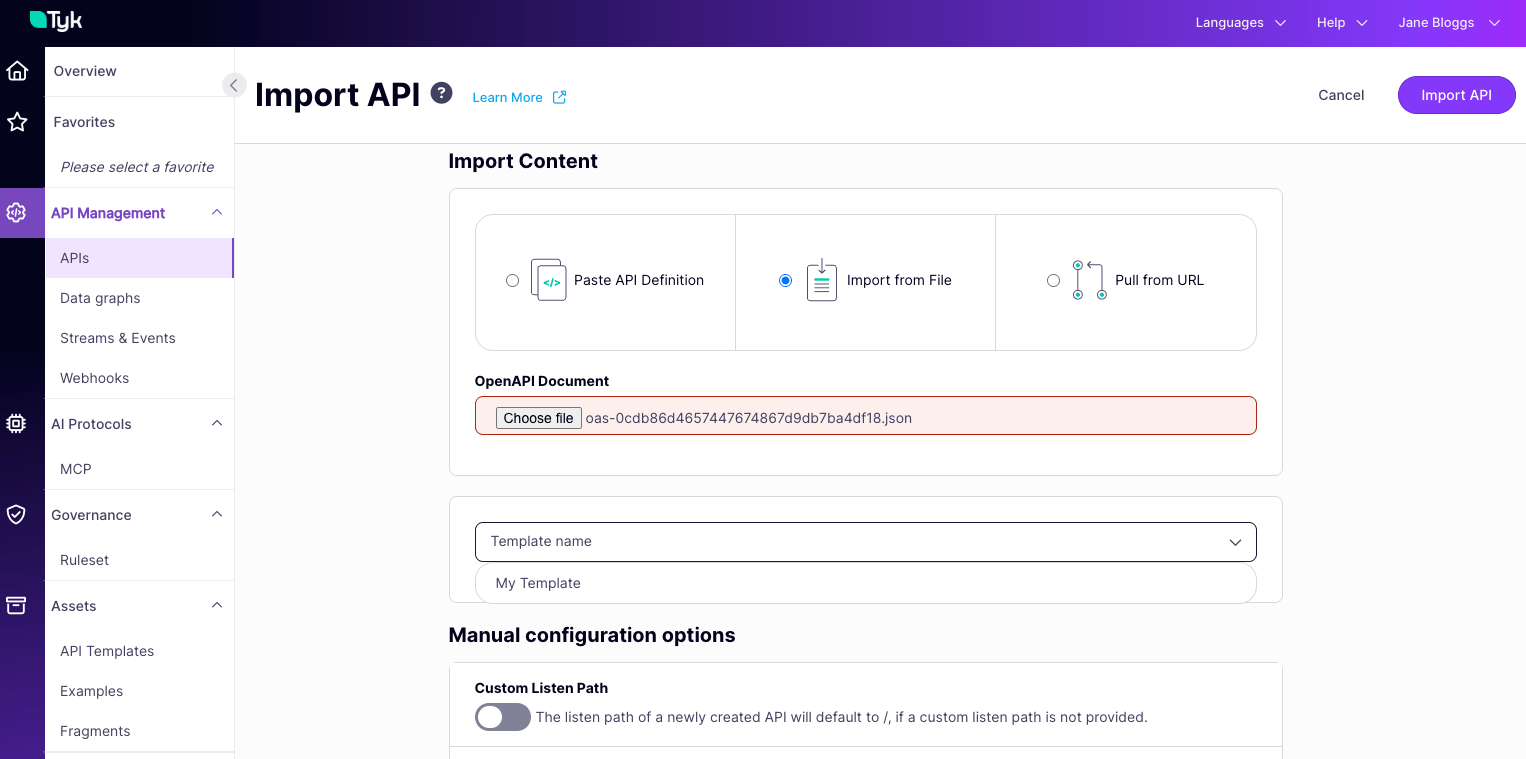
On the Import API screen, select the OpenAPI type to create an API from an OpenAPI description or Tyk OAS API definition. Provide the document to Tyk Dashboard in one of these ways:- Paste API Definition: paste the JSON into the text editor
- Import from File: upload a file that contains the JSON
- Pull from URL: provide a URL to the JSON
Edit a Template
- Go to Assets > API Templates.
- Click the name of the Template, or open its Actions menu and select Edit Template. If you have only read access to Templates, the menu item is View Template.
- On the API Template Details screen, click Edit, and change the settings. To view and change the raw JSON of the Template, open the Actions menu and select View Raw Template. To return to the form, select View Template Designer.
- Click Save Template.
Delete a Template
- Go to Assets > API Templates and open the Template.
- On the API Template Details screen, open the Actions menu and select Delete Template.
- Confirm the deletion.
You can’t undo the deletion. Tyk Dashboard removes the Template from its database, and you can’t recover it.
Use API Templates with the Tyk Dashboard API
API Templates are Assets with thekind set to oas-template. To register a Template, send it to POST /api/assets. The data field holds the Template, in the same format as a Tyk OAS API definition. If you omit id, Tyk Dashboard generates one.
To apply a Template when you create an API, add the templateID query parameter to POST /api/apis/oas/import or POST /api/apis/oas. Its value is the id or the database ID (_id) of the Template. Tyk Dashboard combines the document in the request with the Template, using the rules in Merging with an OpenAPI Description or Tyk OAS API Definition.