

Introduction
Keycloak is an open-source identity provider that supports OpenID Connect. TIB connects to Keycloak usingSocialProvider with the openid-connect provider type.
Before configuring your IdP and TIB profile, pick the guide for your use case: Dashboard SSO, Portal SSO, or Issuing Tokens via TIB. Each page explains the ActionType, ReturnURL, and IdentityHandlerConfig fields for that use case.
This page covers the Keycloak-specific configuration only.
Configure Keycloak
-
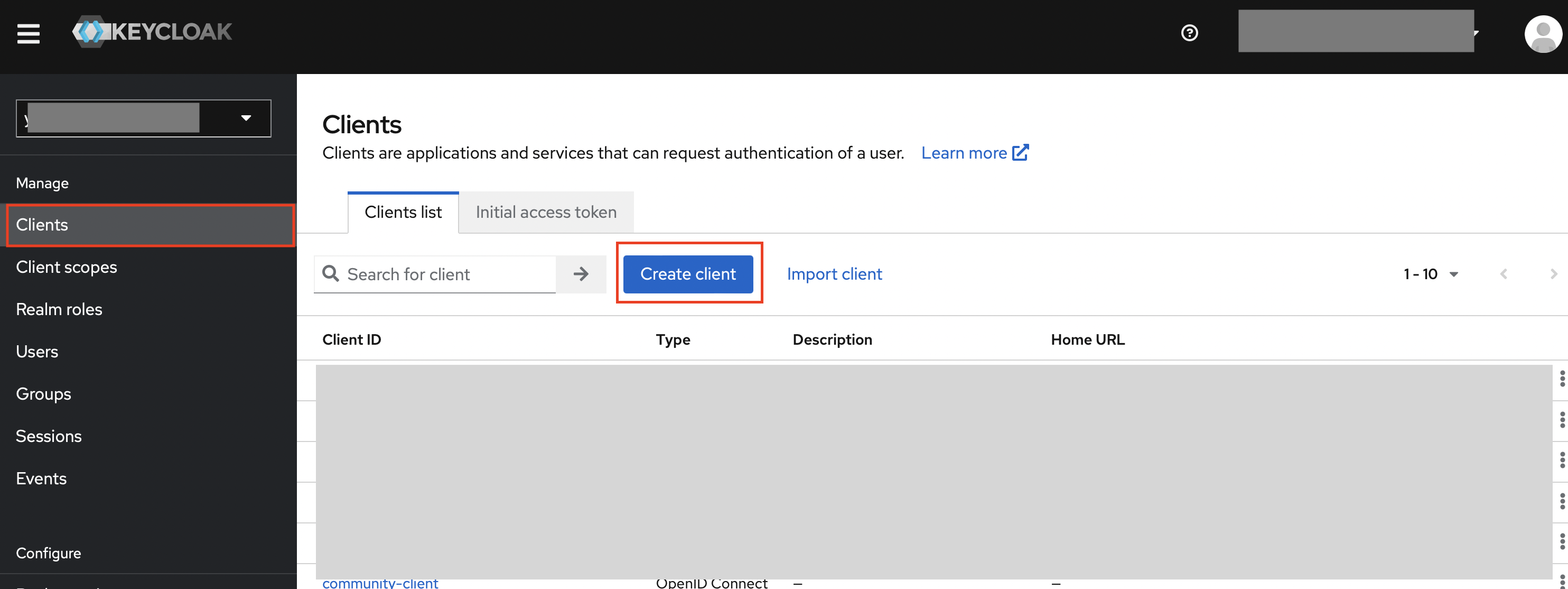
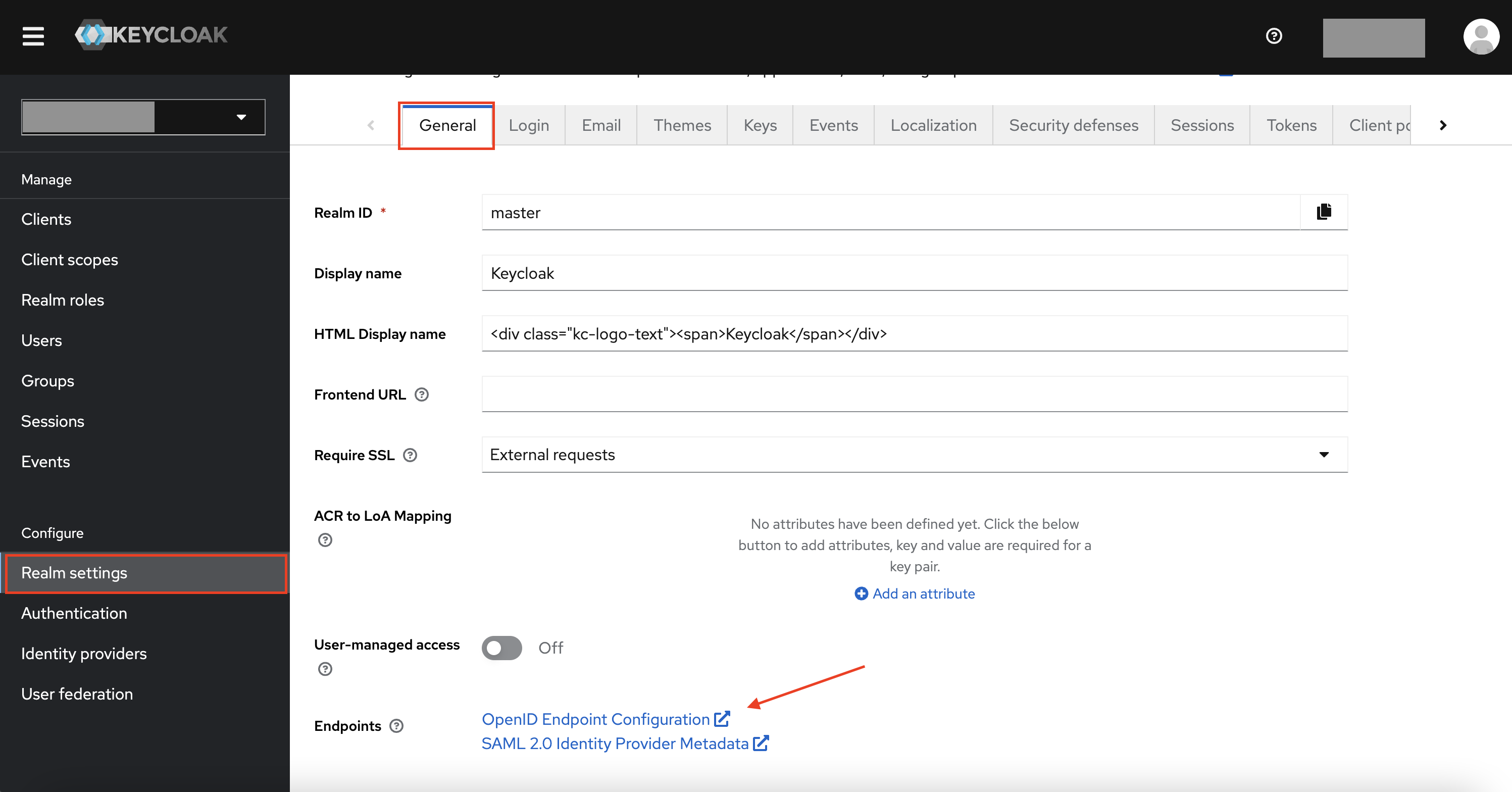
In your Keycloak Admin Console, navigate to the realm you want to use and select Clients.
-
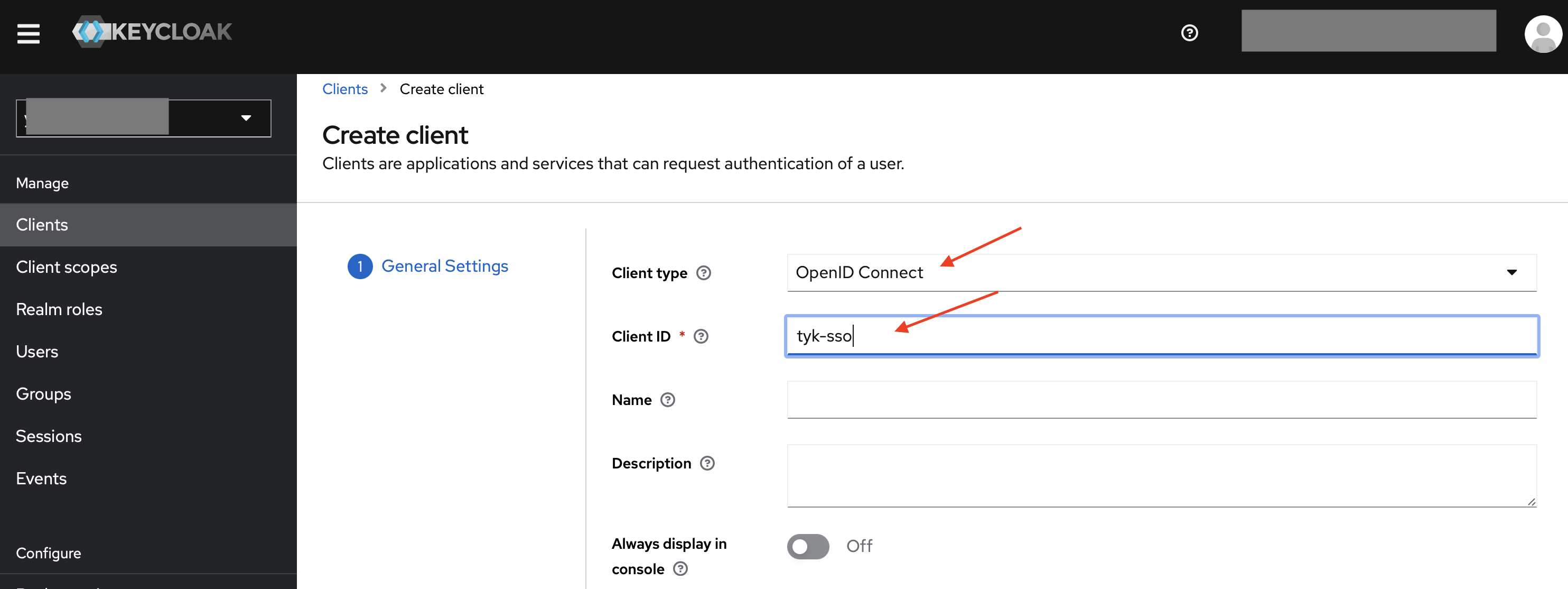
Click Create client, set the Client type to OpenID Connect, enter a Client ID, and click Next.
-
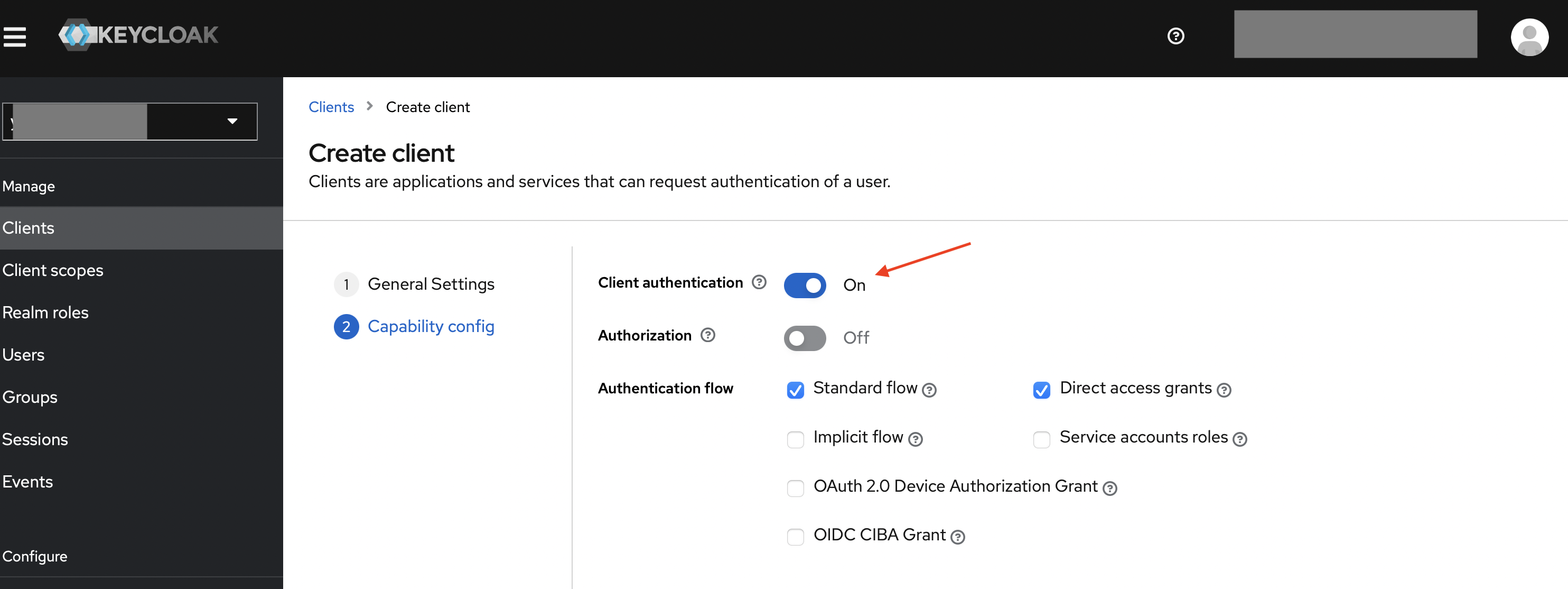
Enable Client authentication and click Next, then Save.
-
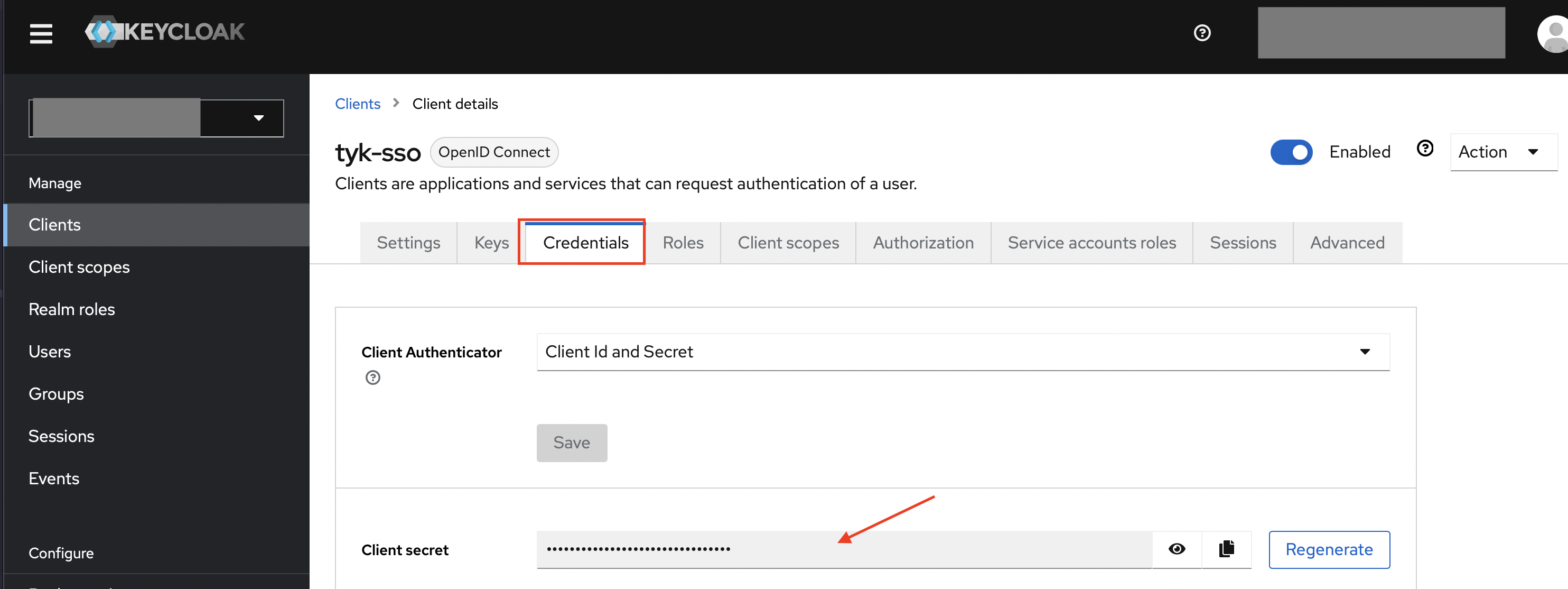
From the client’s Credentials tab, copy the Client Secret.
-
From the client’s Settings tab, add the TIB callback URL to Valid redirect URIs:
Replace
{tib-host}with the hostname of your TIB instance and{profile-id}with the ID you will assign to the TIB profile. - Click Save.
TIB Profile
The Keycloak-specific configuration goes in theProviderConfig block of the TIB profile. Set ProviderName to SocialProvider and Type to redirect.
ProviderConfig fields are:
JSON Web Encryption (JWE)
If Keycloak is configured to encrypt ID tokens, TIB can decrypt them using JWE. Add aJWE block to ProviderConfig to enable this:
PrivateKeyLocation to the certificate ID from the Tyk Dashboard certificate manager. For standalone TIB, set it to the file path of a PEM file containing the private key. The key must correspond to the public key registered with Keycloak for token encryption.
Requires Tyk Identity Broker v1.6.1+ and Tyk Dashboard v5.7.0+.
Worked Examples
These examples use embedded TIB, so theCallbackBaseURL is the same as the Dashboard or Portal respectively; TIB handles requests on the same host and port.
- Dashboard SSO
- Portal SSO
In this example, Tyk Dashboard is running at With this configuration, registered users (with a Tyk Dashboard user account) get their own permissions; unregistered users fall back to the group specified in Login URLThis URL initiates the SSO login flow:In production, present this as a “Log in with Keycloak” button or link on a custom login page, rather than expecting users to navigate to it directly.See Dashboard SSO for details on session behavior, permissions, and user group mapping.
http://dashboard.example.com on port 3000; replace the example values with your own.Tyk Dashboard configurationsso_default_group_id. See Dashboard SSO for full details.TIB profileThe TIB profile is created via the Tyk Identity Broker API or the Tyk Dashboard UI.- set
Keyto the Keycloak Client ID - set
Secretto the Keycloak Client Secret - set
DashboardCredentialto the TIB service account’s Dashboard credentials
ID in the registered URL must exactly match the ID in your TIB profile; a mismatch will result in a 400 Bad Request error: