

Prerequisites
Before creating an App, ensure that an LLM provider is already configured and activated in the proxy. If not, a Studio Administrator must first create and enable an LLM provider.Creating an App
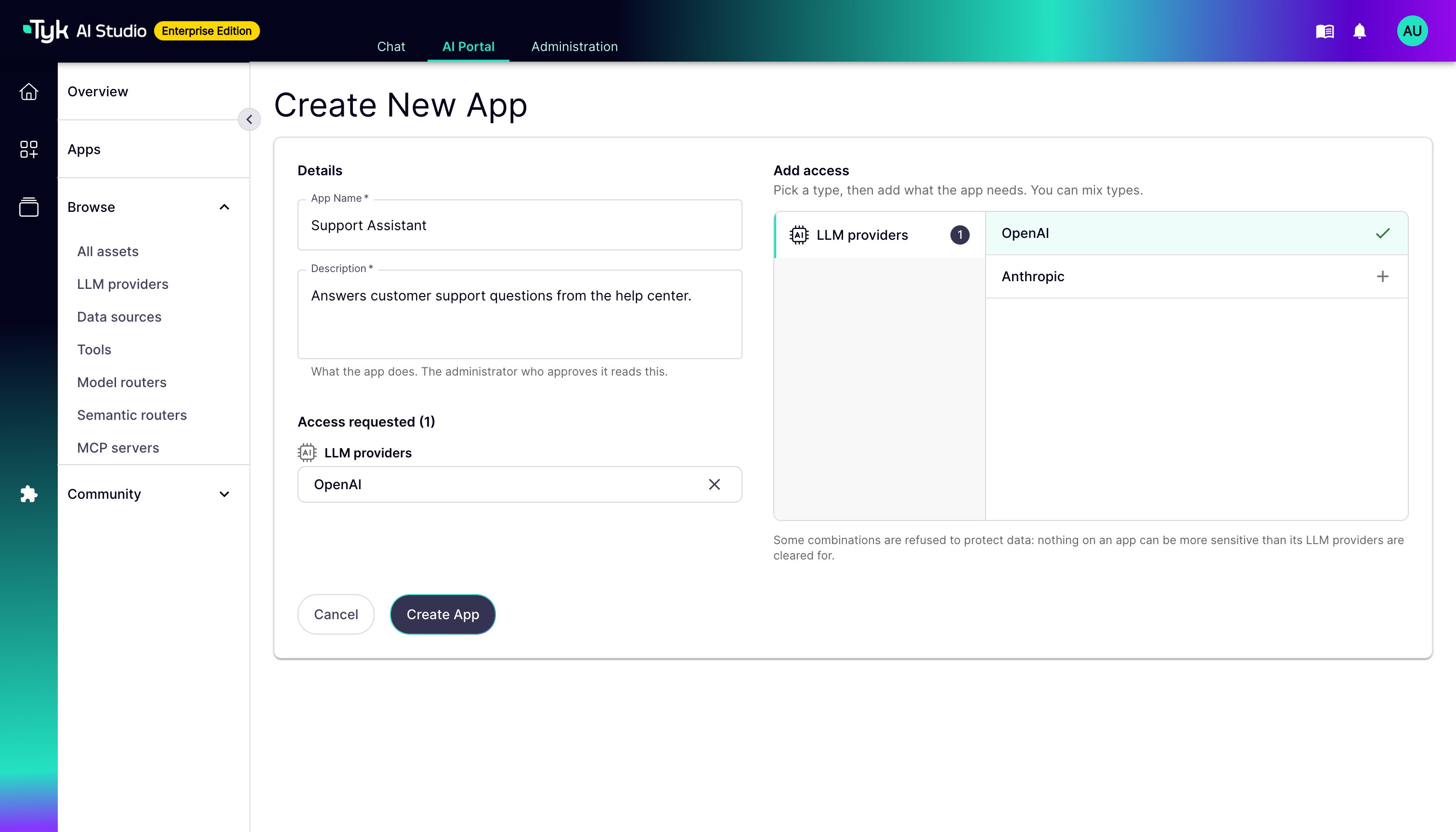
To create a new App, follow these steps:- Go to the AI Portal tab. Click Create app on the Overview page, or go to Apps and click Create App.
- In Details, enter the App Name and the Description. The administrator who approves the App reads the description.
- In Add access, select a type, for example LLM providers. The tabs show only the types that you can add. For example: LLM providers, data sources, tools, MCP servers, and Model Routers.
- Click + next to each item that the App needs. You can add items of different types. Access requested shows the items that you added, grouped by type.
- Click Create App.
App Approval: After you create an App, its credentials are not yet active. A Studio Administrator needs to review and approve your App before you can use it.For more information on the approval process, see the Admin App Management documentation.
Getting Your Credentials
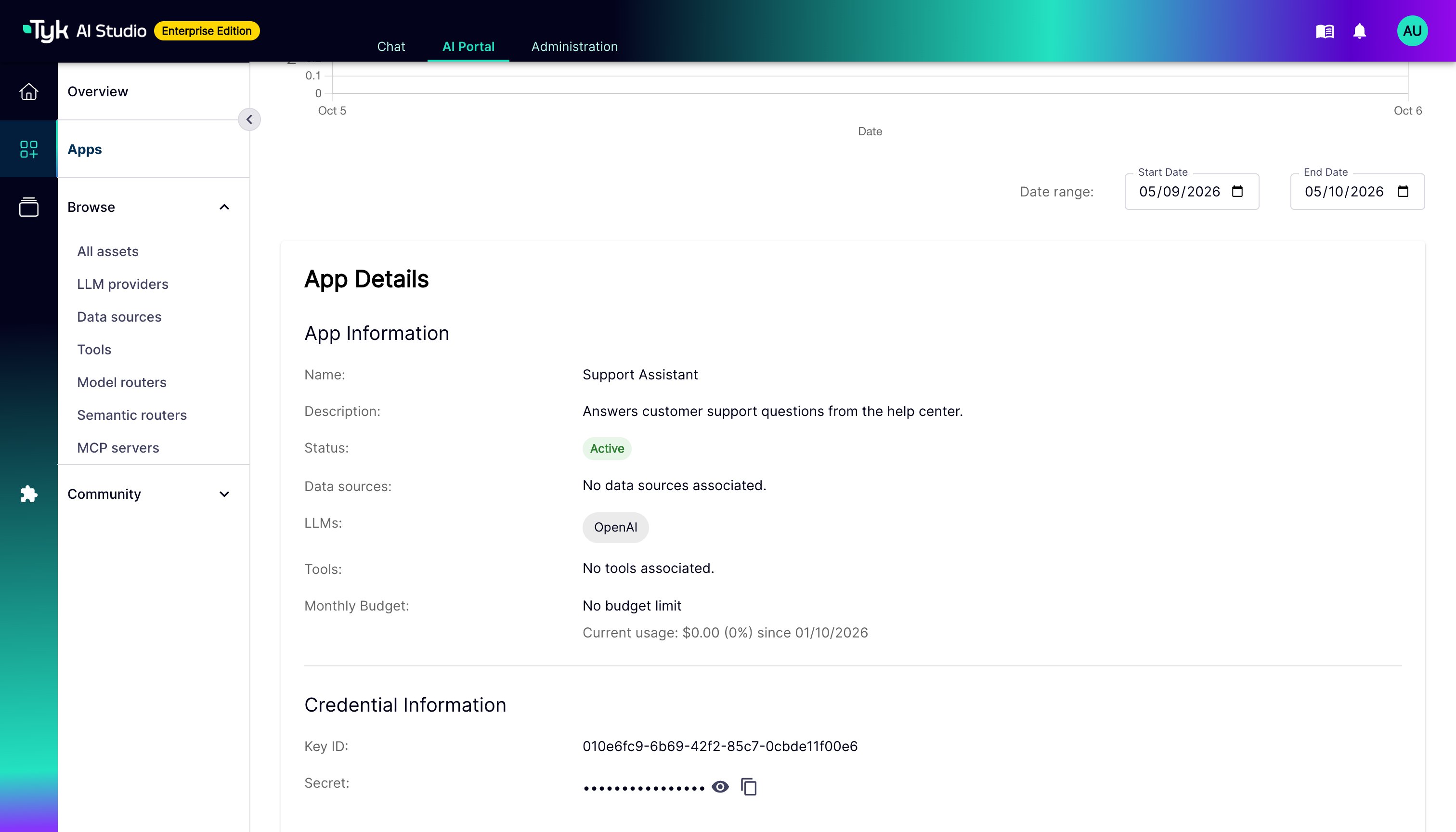
Once your App has been approved by an administrator, you can retrieve the credentials needed to make API requests. From the App Details view, you will find your Credential Information:- Key ID: This is the public identifier for your credentials.
-
Secret: This is your secret API key. Treat it like a password and do not expose it in client-side code.
App Status
The Overview page, the Apps list, and the App Details view use the same status values:Getting LLM Access Details
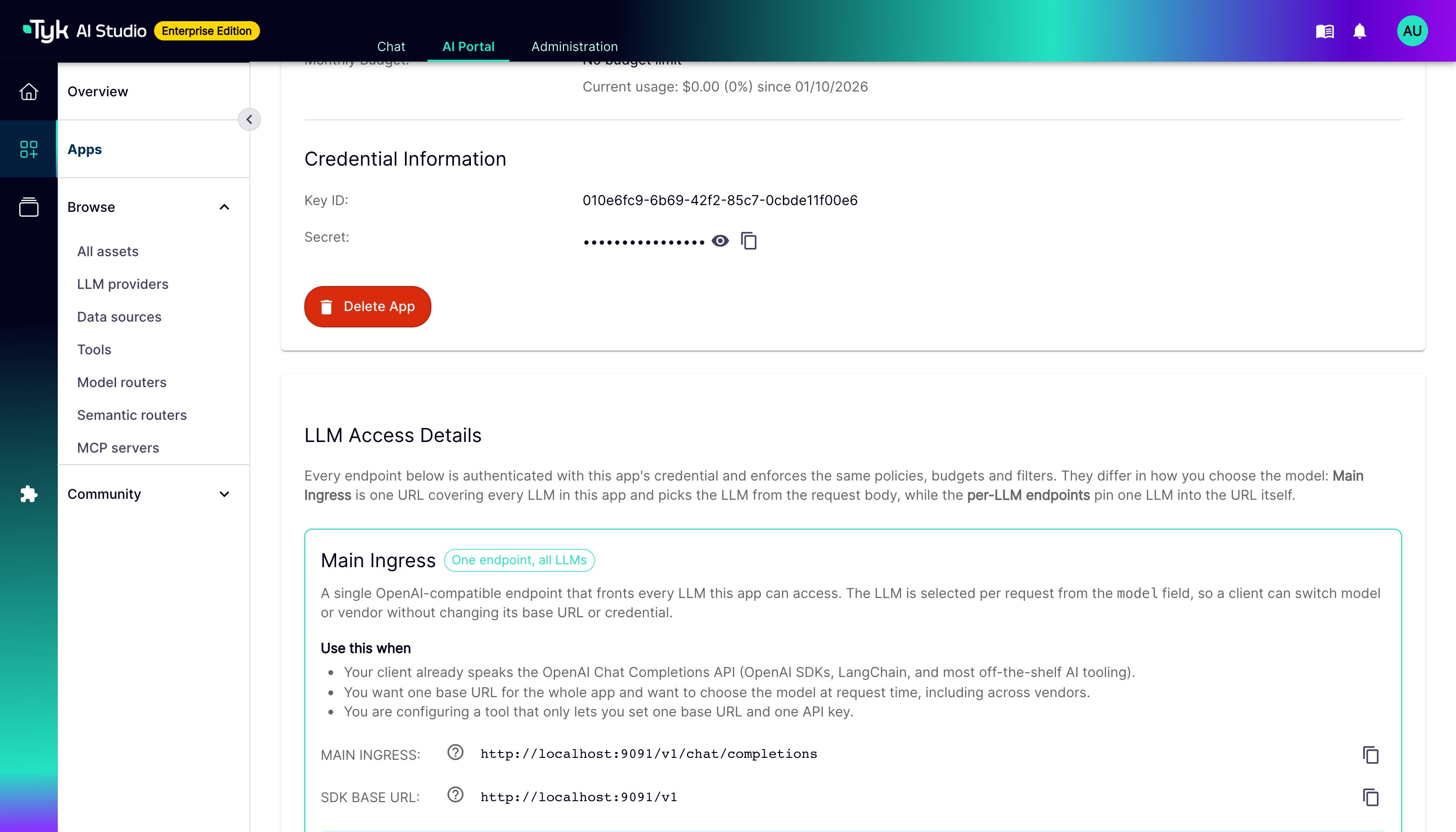
In addition to your credentials, you can also find the LLM Access Details in the App Details view. The section shows:- Main Ingress: One OpenAI-compatible endpoint for all the LLMs of the App. You select the LLM in each request with a model string such as
openai/gpt-4o. The section lists the model names that the App can use. - Per-LLM Endpoints: The vendor-native endpoint and the OpenAI-compatible endpoint of each LLM, and the legacy endpoints.
Monitoring Your App
The App Details view also allows you to monitor the usage and performance of your application.- Token Usage and Cost: A graph shows you how many tokens your App is consuming and the associated costs, which can be filtered by date.
- App Interaction: You can see number of interactions over time, which can help you understand usage patterns.